

Prerequisites
Before setting up the Conversations integration, you must have Messaging for Web configured in your Zendesk account. This integration requires a functioning Web Widget to communicate with your customers.Setting Up Messaging for Web
If you haven’t already set up messaging, follow the official Zendesk guide: Getting started with messaging for your website, help center, and mobile apps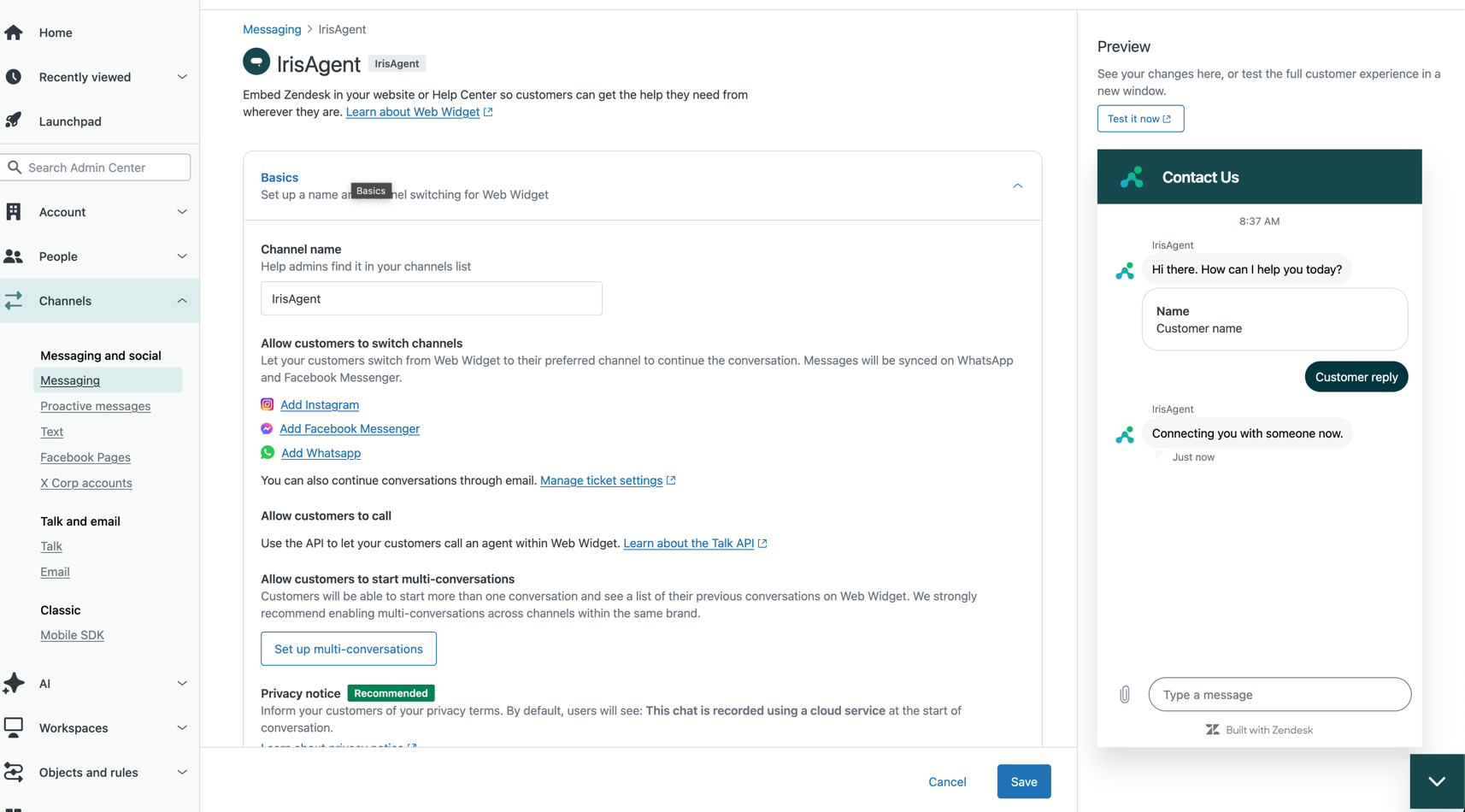
- Create a messaging channel (automatically enabled in your account)
- Configure and customize your Web Widget appearance
- Install the Web Widget code on your website or help center
- Set up ticket routing and agent access
Step 1: Create a Conversations Integration
Create a new Conversations integration to establish a bidirectional connection between Zendesk and IrisAgent. Follow the official guide: Creating conversations integrations in Admin CenterConfiguration Steps
- In Zendesk Admin Center, navigate to Apps and integrations > Integrations > Conversations integrations
- Click Create integration and give it a descriptive name (e.g., “IrisAgent Integration”)
- Configure the webhook settings:
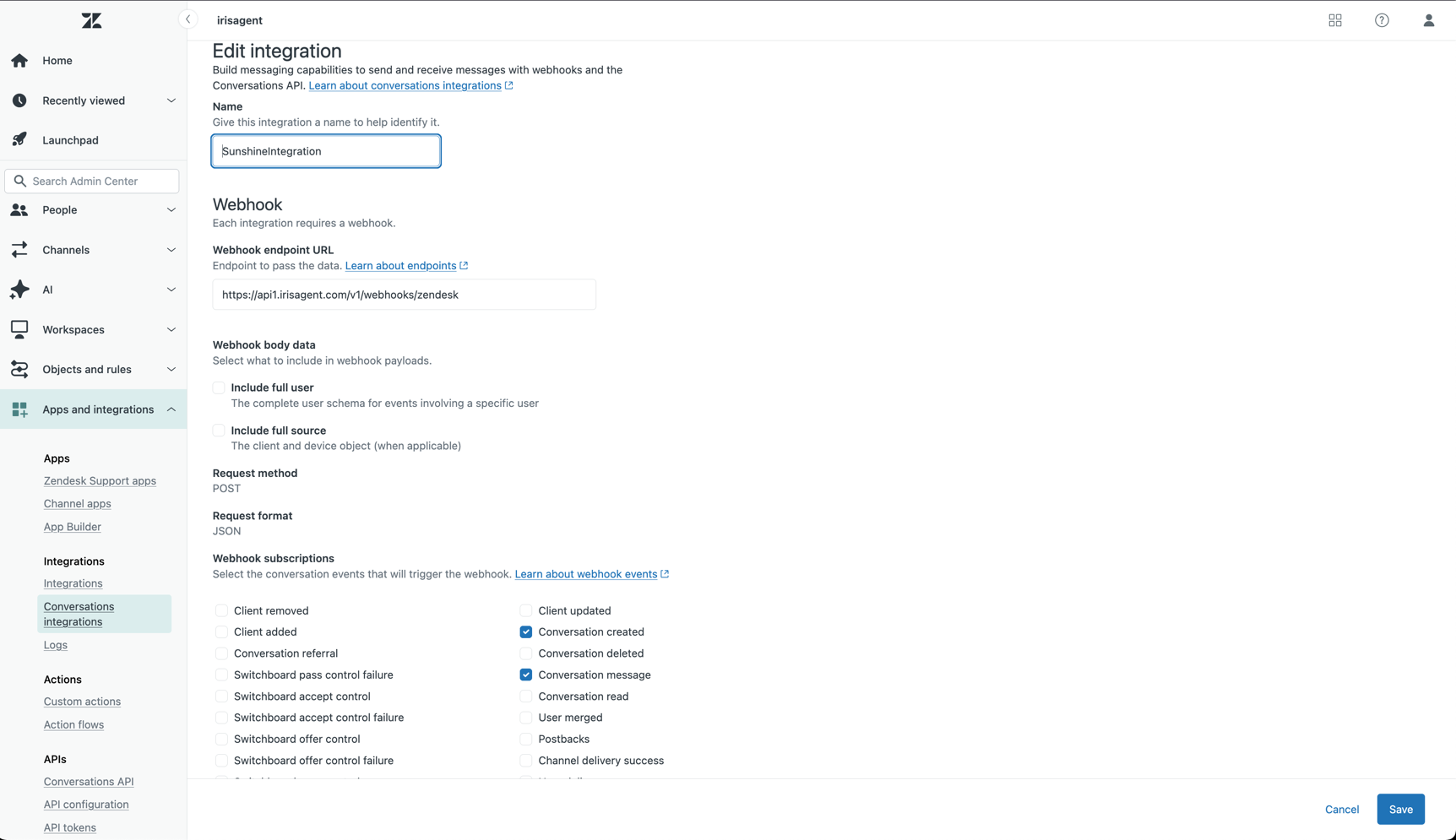
- Target URL:
https://api1.irisagent.com/v1/webhooks/zendesk - Event Subscriptions: Select the following events:
- ✅
conversation:create(Conversation created) - ✅
conversation:message(Conversation message) - ✅
switchboard:releaseControl(Switchboard releases control after a human session)
- ✅
- Click Save to create the integration
switchboard:releaseControl. Saving the IrisAgent configuration does not update event subscriptions in Zendesk.
Record Integration Credentials
After saving, you’ll need to collect the following information:
⚠️ Important: The shared secret is shown only once. Copy and store it securely before leaving the page.
Step 2: Generate API Keys
API keys provide authentication credentials for making API calls to Sunshine Conversations.Creating API Keys
- In your Conversations integration, navigate to the API Keys tab
- Click Create API key and give it a descriptive name
- After creation, click on the key to view the credentials dialog
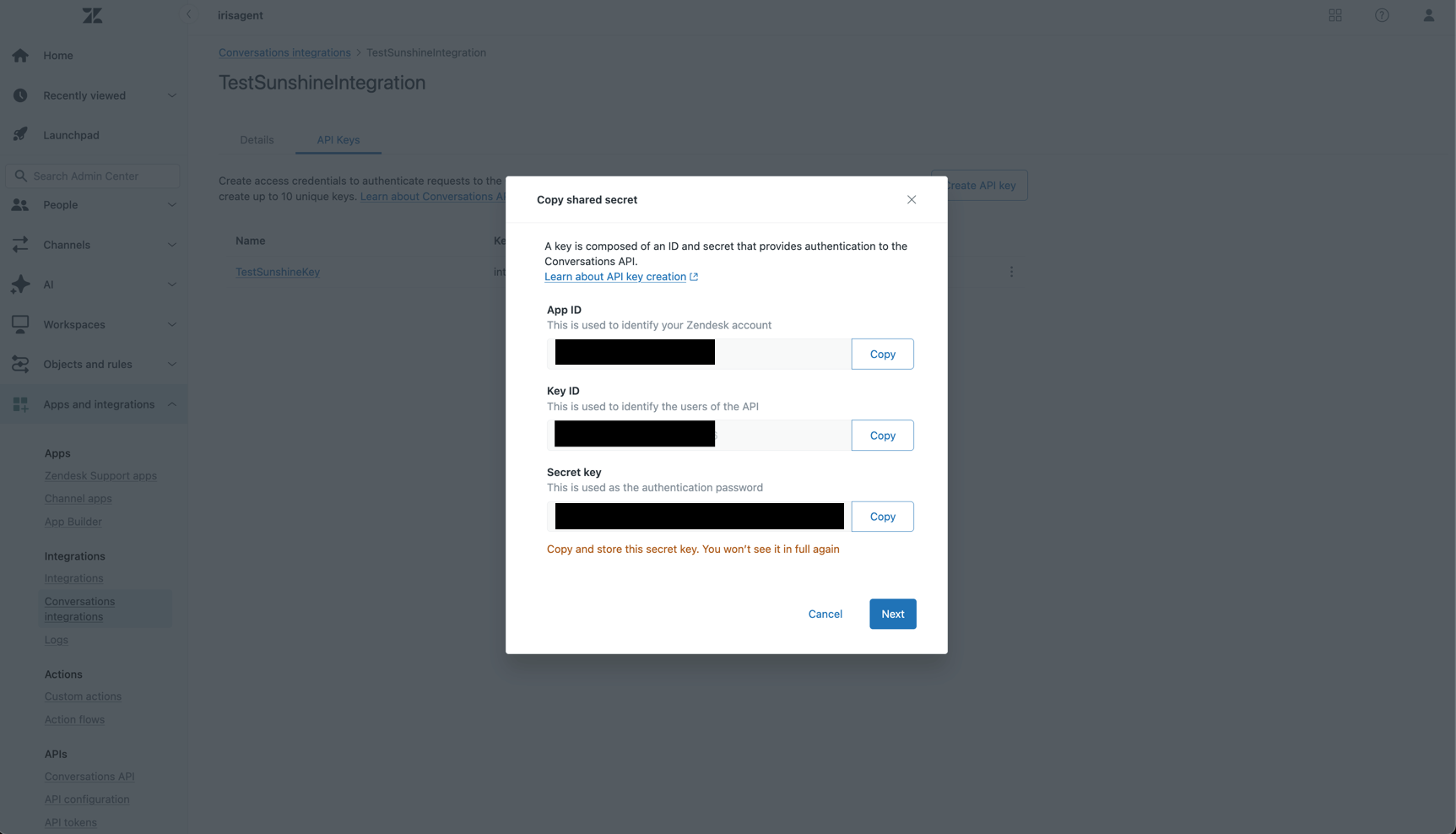
Record API Credentials
Copy and store the following values:
⚠️ Important: The secret key is shown only once. Copy and store it securely before closing the dialog.
Step 3: Configure IrisAgent
Now that you have all the required credentials, configure IrisAgent to connect with your Zendesk Sunshine Conversations.- In the IrisAgent dashboard, open Deploy → Chat channels from the left sidebar
- Find the Zendesk Sunshine card and click Configure to open the configuration panel
- Enter all the credentials you collected:
- App ID
- Integration ID
- Webhook ID
- Shared secret
- Key ID
- Secret key
- Click Save to complete the setup
Step 4: Limit IrisAgent to Specific Widgets or Brands (Optional)
By default, the Conversations integration is account-wide. Zendesk sendsconversation:create and conversation:message events for every messaging conversation in your account, across every brand and every Web Widget. That means IrisAgent will answer in all of your messaging widgets.
If you run more than one Web Widget and want IrisAgent active on only some of them (for example, on a billing product but not on a separate website product), use the chat filter.
You do not need a second Conversations integration, webhook, or API key for this. One integration serves your whole account, and the filter controls which conversations IrisAgent responds to.
How the Filter Behaves
The chat filter is an allow-list. When it is enabled, IrisAgent responds only to conversations that match it and ignores everything else. Any widget you do not include is silently skipped. This is useful when rolling out a new widget: configure the filter to match only your existing widgets, and a newly launched widget will not receive AI answers until you deliberately add it.Choose a Matching Method
Pick based on how your widgets are separated in Zendesk.
Every Web Widget is its own messaging integration, so the integration ID always distinguishes them, even when the brand does not.
Configure the Filter
- In the IrisAgent dashboard, open Deploy → Chat channels
- On the Zendesk Sunshine card, click Configure to open the Zendesk Sunshine Configuration panel
- Scroll to the Chat Filter section and turn the toggle on
- Choose a Filter Mode:
- Simple: enter the Brand ID of the brand IrisAgent should respond to. The read-only Generated Query field below shows the expression this produces.
- Advanced: enter a match expression in the Query field (see below)
- Click Save
Advanced Match Expressions
Advanced mode accepts an expression that is evaluated against each incoming message. The expression must return true or false, and it is validated by the backend when you save, so an invalid expression is rejected rather than silently blocking answers. Respond only to one widget:Finding Your Brand and Integration IDs
- Brand ID: in Zendesk Admin Center, go to Account > Brands and open the brand. The numeric ID appears in the page URL.
- Messaging integration ID: the simplest way is to send one test message through each Web Widget, then contact IrisAgent support. Because IrisAgent already receives every messaging event, we can read the exact brand and integration ID each of your widgets reports and confirm the correct filter values with you.
Step 5: Configure Human Handoff and Zendesk Routing
Use the existing chatbot Handoff settings to control what happens when a procedure escalates a Zendesk Messaging conversation. You do not need a second webhook or a separate release trigger in IrisAgent.Zendesk webhook conversations use the chatbot configuration marked Default. If you have multiple chatbot configurations, add these settings to the default configuration.
- In the IrisAgent dashboard, open AI Products → Chatbot and click Configure and deploy
- Select the configuration marked Default, then open the Handoff tab
- Set Method to Start a live chat
- In Zendesk ticket tags, enter any tags that Zendesk should add to the messaging ticket when IrisAgent escalates. Separate multiple tags with commas
- Click Update Configuration
- Sends the procedure’s handoff response to the customer
- Finds the active Zendesk ticket for the messaging conversation
- Adds the configured tags to that ticket
- Passes Sunshine Conversations Switchboard control to Zendesk Agent Workspace
- Stops responding to subsequent messages in that conversation
switchboard:releaseControl to the webhook configured in Step 1. A new Zendesk ticket alone does not reset the handoff state. No second webhook or separate Zendesk trigger is needed.
Route the Tagged Ticket in Zendesk
Use the configured tag in a Zendesk trigger to perform the customer-specific routing action. For example, a trigger can check forescalated_to_human, assign the ticket to the Support group, and let Zendesk omnichannel routing offer it to an available agent.
Keep the Zendesk trigger responsible for group, priority, skills, and other account-specific routing choices. IrisAgent adds the configured tags and passes Switchboard control to Agent Workspace; it does not hardcode a Zendesk group.
Verification
After completing the setup:- Send a test message through your Web Widget
- Trigger a procedure that uses Escalate to human, or ask to speak with a human when your procedures support that request
- Verify that the active Zendesk ticket contains the configured handoff tags
- Confirm that your Zendesk trigger applies the expected group or other routing actions
- Verify that the conversation appears in Zendesk Agent Workspace and IrisAgent no longer replies
- Close the human-handled ticket, then send another message from the same end user. Confirm IrisAgent replies in the new interaction after Zendesk releases Switchboard control
- All credentials are entered correctly
- The webhook subscribes to
conversation:create,conversation:message, andswitchboard:releaseControl. If IrisAgent stays silent after a human session, check that Zendesk delivered the release event - Your Zendesk account has the required permissions (Suite Professional plan or above)
- If you configured a chat filter in Step 4, the widget you are testing from actually matches it. A filter that matches no conversations will silently stop all AI answers
- The chatbot configuration marked Default uses Start a live chat and contains valid Zendesk tags
- Zendesk is connected as a ticketing source if you want IrisAgent to update the messaging ticket with tags
- Your Zendesk trigger conditions match the exact tag configured in IrisAgent
- If control reaches Agent Workspace without the tag, check for a temporary Support API or ticket-creation error and confirm that your fallback routing rule handles the conversation