

Revise Chatbot Answers
Train your chatbot to give better responses by revising AI answers directly from the IrisAgent dashboard. When the chatbot provides an answer that could be improved, you can update it in just a few clicks—no code required.Overview
The Revise feature allows you to:- Review chatbot conversations in real-time
- Edit AI responses that need improvement
- Train the chatbot to provide your revised answer for similar future questions
- Maintain consistent, on-brand messaging across all customer interactions
Revised answers are applied immediately. The next time a customer asks a similar question, the chatbot will use your updated response.
How It Works
When you revise an answer, you’re creating a training rule that tells IrisGPT how to respond to specific types of questions. You can either provide a Direct Answer (the exact response you want) or give Instructions for AI Agent (guidelines for how the AI should formulate its response).Step 1: Ask a Question in the Chatbot
Start by identifying an AI response that needs improvement. You can do this by:- Testing the chatbot yourself with sample questions
- Reviewing recent customer conversations
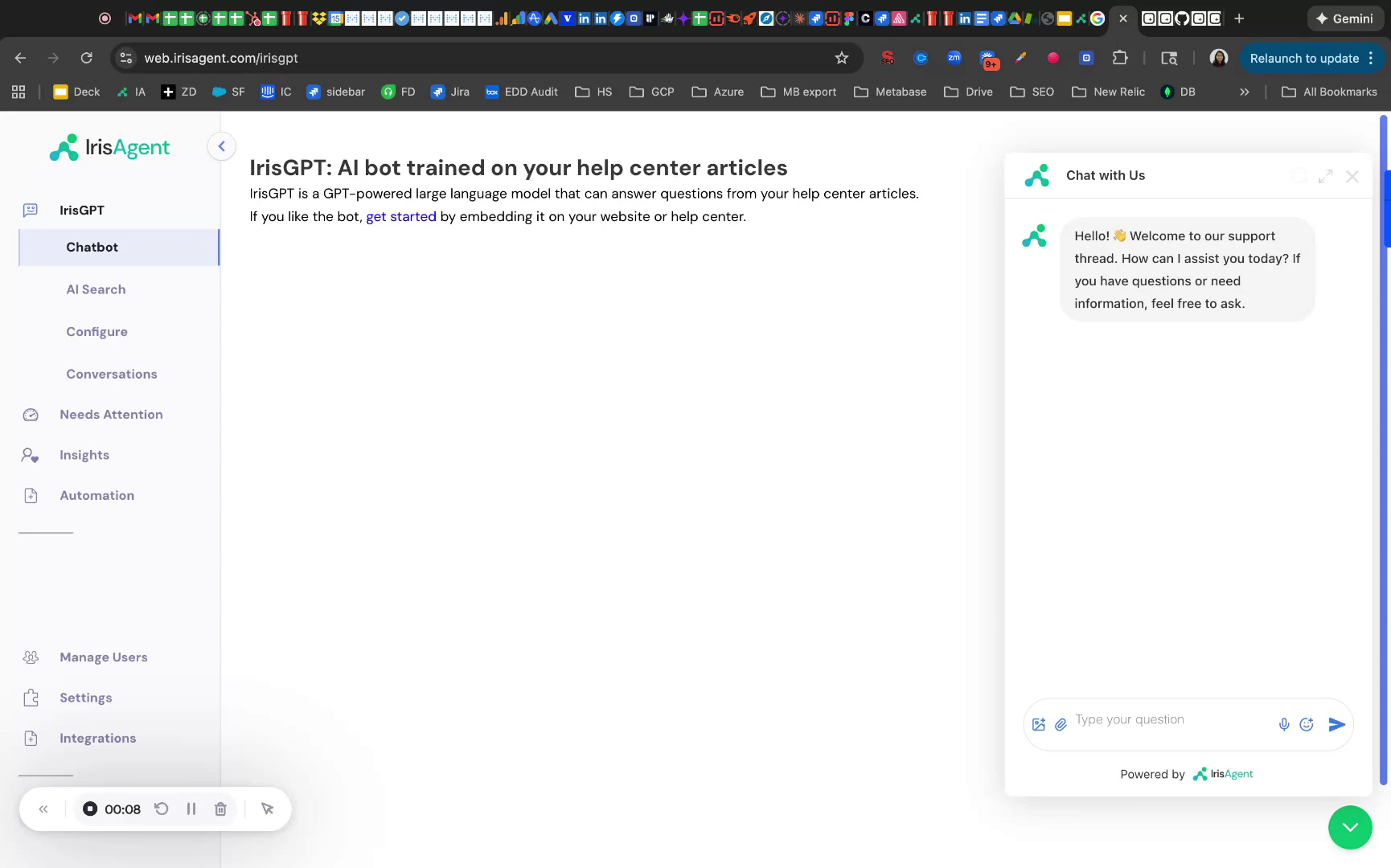
Step 2: Open the Conversations Tab
In the IrisAgent dashboard, open Activity → Conversations, where recent chatbot interactions are listed.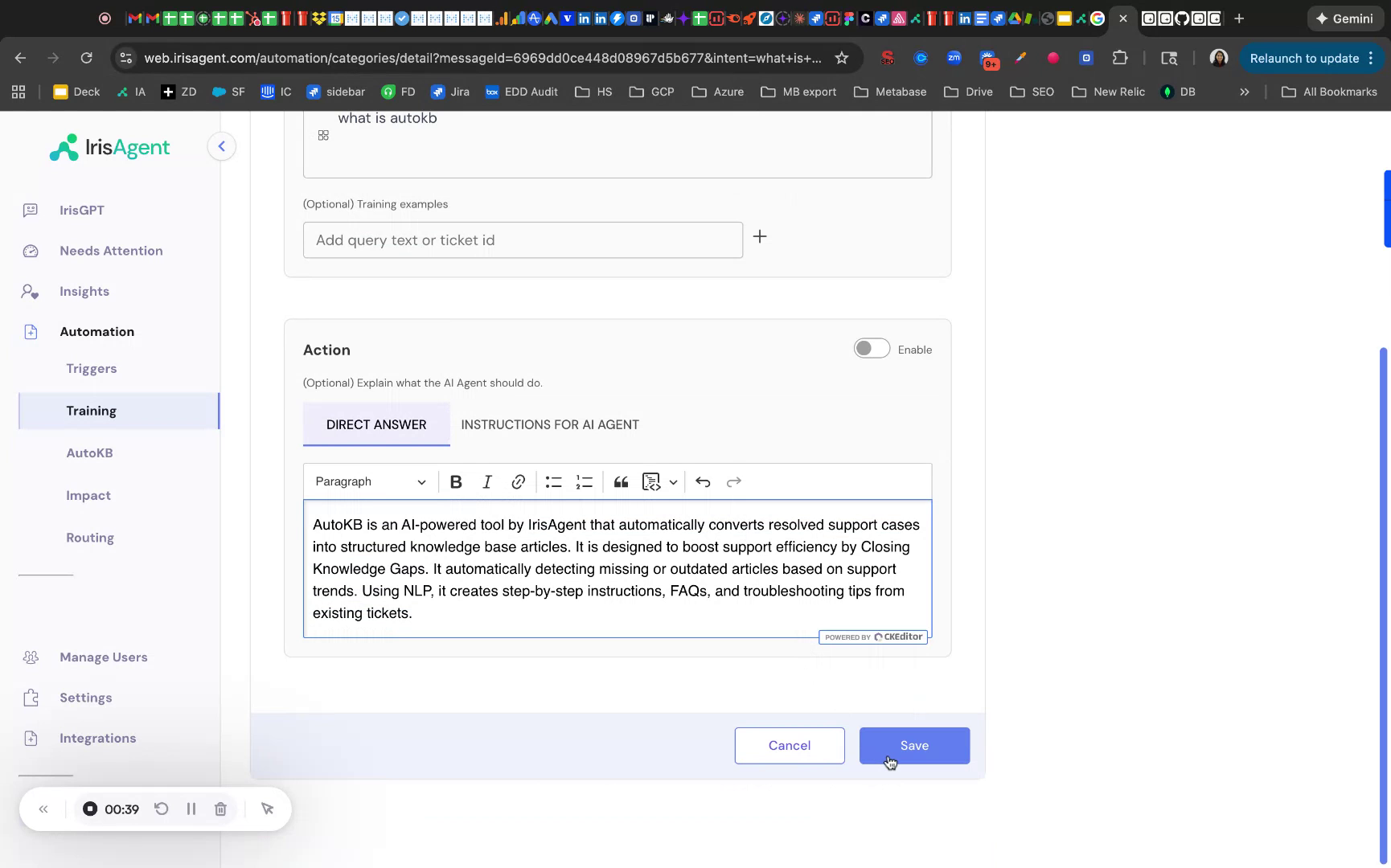
Step 3: Open the Revise Answer View
Within the conversation detail view, you’ll see the question and the AI’s response. Look for the Revise button in the bottom-right corner of the AI answer. Click Revise to open the answer editor.Step 4: Edit and Save the New Answer
You’ll now see the revision editor with two tabs:- Direct Answer
- Instructions for AI Agent
Use this option to provide the exact response you want the chatbot to give. This is best for:
- Specific factual information
- Standard responses with precise wording
- Answers that should always be consistent
Step 5: Test the Updated Answer in the Chatbot
Return to the chatbot interface and ask the same question again (e.g., “What is AutoKB?”). Confirm that the chatbot now responds with exactly the revised answer you configured.Success! Your chatbot is now trained to provide the improved response for this type of question.
Managing Revised Answers
All your revisions are saved as training rules. To view or edit existing revisions:- Go to Automate → Procedures in the sidebar
- Browse your list of training rules
- Click any rule to edit or delete it
Best Practices
Keep answers concise and helpful
Keep answers concise and helpful
Customers prefer clear, direct answers. Aim for responses that quickly address the question without unnecessary filler.
Include links to documentation
Include links to documentation
When appropriate, link to relevant help center articles so customers can learn more.
Match your brand voice
Match your brand voice
Ensure revised answers align with your company’s tone and communication style.
Add training examples for variations
Add training examples for variations
If customers ask the same question in different ways, add those variations as training examples to improve matching.
FAQ
How quickly do revisions take effect?
How quickly do revisions take effect?
Revisions are applied immediately after you click Save. The next matching question will receive your updated response.
Can I revert a revision?
Can I revert a revision?
Yes. Go to Automate → Procedures, find the rule, and either edit it or delete it to restore the AI’s default behavior.
What's the difference between Direct Answer and Instructions?
What's the difference between Direct Answer and Instructions?
Direct Answer provides a word-for-word response. Instructions for AI Agent gives the AI guidelines to formulate its own response based on your criteria.
Will revisions affect all channels?
Will revisions affect all channels?
Yes, revisions apply to IrisGPT across all deployed channels (website chatbot, help center, etc.).
Related Articles
Chatbot on Website
Deploy IrisGPT on your website
Workflows
Create automated workflows with AI
AI for Macros
Use AI to enhance agent macros
Ticket Deflection
Automatically resolve common tickets