> ## Documentation Index
> Fetch the complete documentation index at: https://docs.irisagent.com/llms.txt
> Use this file to discover all available pages before exploring further.
# Okta SSO
> IrisAgent offers Single Sign On via Okta. Use this guide to set it up.
## **Introduction**
\
IrisAgent supports SAML-based sign-in flow with Okta. This guide will help you integrate Okta with IrisAgent using SAML.
## **Okta SAML Integration**
### **Step 1: Create a new SAML application in Okta**
1. Follow the [Okta guide](https://help.okta.com/oie/en-us/content/topics/apps/apps_app_integration_wizard_saml.htm) to create a new SAML application.
2. Get the value of TENANT\_ID from your point of contact at IrisAgent and then set the following values for the application:
* Single sign-on URL: `https://frontend-api-server-v2.api.irisagent.com/oauth/okta/TENANT_ID/saml/acs`
* Audience URI (SP Entity ID): `https://frontend-api-server-v2.api.irisagent.com/oauth/okta/TENANT_ID/saml/metadata`
* Attribute Statements:
* `email` -> `user.email`
* `name` -> `user.firstName + " " + user.lastName`
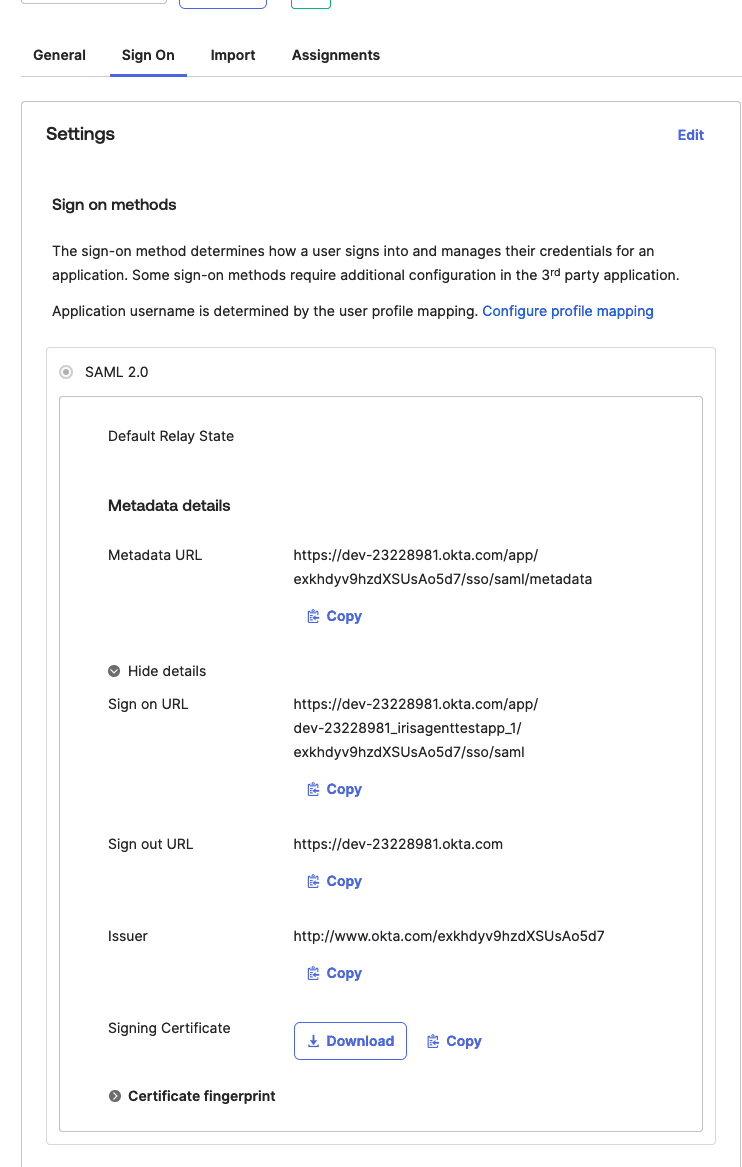 ### **Step 2: Provide the metadata to IrisAgent**
1. Metadata URL
2. Issuer
### **Step 3: Connect with Zendesk (or any other ticketing system that you use)**
\
A Zendesk user (with`write`access) in your team should follow the instructions provided [here to connect Zendesk](https://docs.irisagent.com/data-sources/Zendesk) to connect IrisAgent to your Zendesk account. Ensure that this user is assigned to the SAML application of IrisAgent from your Okta dashboard.
### **Step 4: Notify IrisAgent**
Inform IrisAgent [by email](mailto:contact@irisagent.com)once the metadata has been provided and the connection with Zendesk is established.
### **Step 5: Sign in to IrisAgent**
After IrisAgent confirms that your account is set up, you can sign in to IrisAgent from the "My Apps" page of your Okta dashboard.
### **Step 6: Invite more users to IrisAgent**
Your Okta admin can add more users by assigning them to the IrisAgent SAML app in Okta. In addition, please add these users by navigating to "Manage Users" page on [IrisAgent Dashboard.](https://web.irisagent.com/)
### **Step 2: Provide the metadata to IrisAgent**
1. Metadata URL
2. Issuer
### **Step 3: Connect with Zendesk (or any other ticketing system that you use)**
\
A Zendesk user (with`write`access) in your team should follow the instructions provided [here to connect Zendesk](https://docs.irisagent.com/data-sources/Zendesk) to connect IrisAgent to your Zendesk account. Ensure that this user is assigned to the SAML application of IrisAgent from your Okta dashboard.
### **Step 4: Notify IrisAgent**
Inform IrisAgent [by email](mailto:contact@irisagent.com)once the metadata has been provided and the connection with Zendesk is established.
### **Step 5: Sign in to IrisAgent**
After IrisAgent confirms that your account is set up, you can sign in to IrisAgent from the "My Apps" page of your Okta dashboard.
### **Step 6: Invite more users to IrisAgent**
Your Okta admin can add more users by assigning them to the IrisAgent SAML app in Okta. In addition, please add these users by navigating to "Manage Users" page on [IrisAgent Dashboard.](https://web.irisagent.com/)