> ## Documentation Index
> Fetch the complete documentation index at: https://docs.irisagent.com/llms.txt
> Use this file to discover all available pages before exploring further.
# Slack Bot
> Install and use IrisGPT in your Slack workspace
## **Introduction**
\
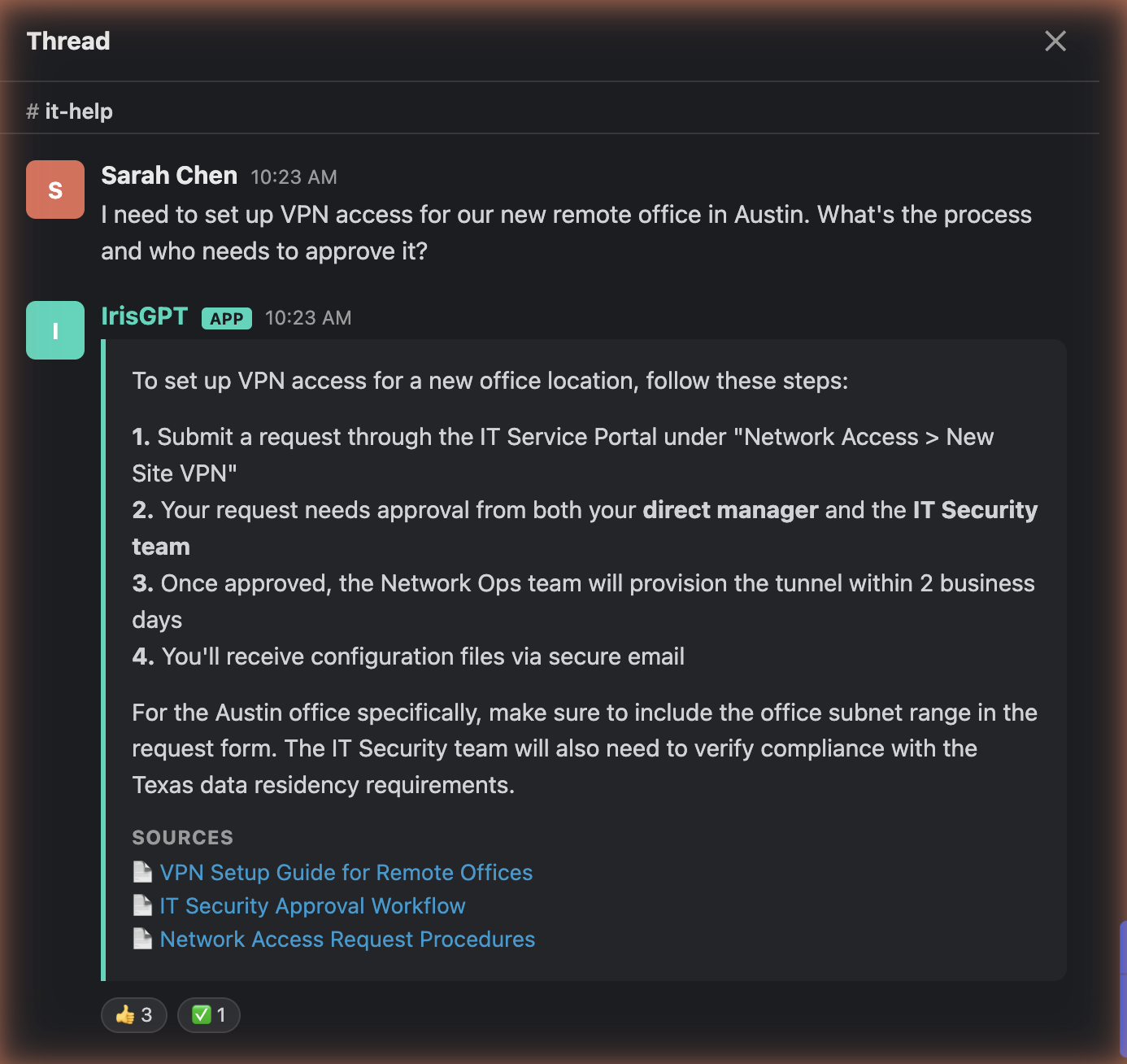
IrisGPT for Slack is an AI-powered assistant that integrates directly into your Slack workspace. It answers common customer and employee questions, retrieves relevant information, and helps your team stay productive, all without leaving Slack.\
\
Ready to get started? [Contact us now](https://irisagent.com/get-a-demo/) to schedule a demo and bring IrisGPT to your team.
 ## **Getting Started**
### **Step 1: Install IrisGPT in Your Slack Workspace**
In IrisPortal, open your chatbot deployment settings, find the **Slack** card, and click **Add to Slack**. Authorize the app for your workspace when Slack prompts you.
No additional setup is required. Your IrisAgent contact handles all app configuration on your behalf.
Depending on your workspace configuration, the bot may appear as **IrisGPT** or **IrisGPT Slackbot** in Slack. Both names refer to the same app.
### **Step 2: Choose a Deployment Mode**
IrisGPT supports two deployment modes. Discuss your preferred mode with your IrisAgent contact during setup.
#### **Option 1: Channel Auto-Reply Mode**
IrisGPT automatically responds to messages in the channels where it is added. This mode is ideal for dedicated support or help channels where you want every question answered.
#### **Option 2: Mention Mode**
IrisGPT only responds when explicitly mentioned with `@IrisGPT`. This mode is ideal for general channels where you want on-demand assistance without automatic replies.
### **Step 3: Add IrisGPT to Your Channels**
To add IrisGPT to a channel:
1. Open the channel where you want IrisGPT.
2. Click the channel name at the top to open **Channel Details**.
3. Go to the **Integrations** tab.
4. Click **Add Apps**, then search for **IrisGPT** and select it.
The bot must be added to a channel before it can respond to messages there.
## **Using IrisGPT in Slack**
### **Slash Command: `/askIrisGpt`**
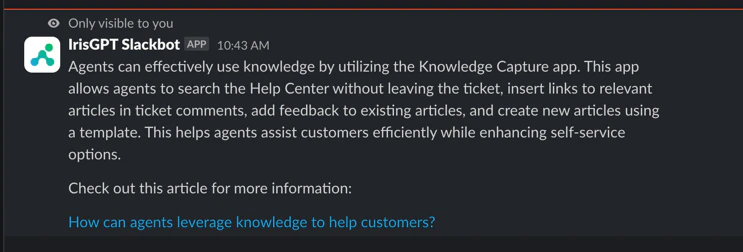
Use the slash command to ask a question privately. The response is visible only to you.
```
/askIrisGpt how do I reset my password?
```
## **Getting Started**
### **Step 1: Install IrisGPT in Your Slack Workspace**
In IrisPortal, open your chatbot deployment settings, find the **Slack** card, and click **Add to Slack**. Authorize the app for your workspace when Slack prompts you.
No additional setup is required. Your IrisAgent contact handles all app configuration on your behalf.
Depending on your workspace configuration, the bot may appear as **IrisGPT** or **IrisGPT Slackbot** in Slack. Both names refer to the same app.
### **Step 2: Choose a Deployment Mode**
IrisGPT supports two deployment modes. Discuss your preferred mode with your IrisAgent contact during setup.
#### **Option 1: Channel Auto-Reply Mode**
IrisGPT automatically responds to messages in the channels where it is added. This mode is ideal for dedicated support or help channels where you want every question answered.
#### **Option 2: Mention Mode**
IrisGPT only responds when explicitly mentioned with `@IrisGPT`. This mode is ideal for general channels where you want on-demand assistance without automatic replies.
### **Step 3: Add IrisGPT to Your Channels**
To add IrisGPT to a channel:
1. Open the channel where you want IrisGPT.
2. Click the channel name at the top to open **Channel Details**.
3. Go to the **Integrations** tab.
4. Click **Add Apps**, then search for **IrisGPT** and select it.
The bot must be added to a channel before it can respond to messages there.
## **Using IrisGPT in Slack**
### **Slash Command: `/askIrisGpt`**
Use the slash command to ask a question privately. The response is visible only to you.
```
/askIrisGpt how do I reset my password?
```
 ### **Mention: `@IrisGPT`**
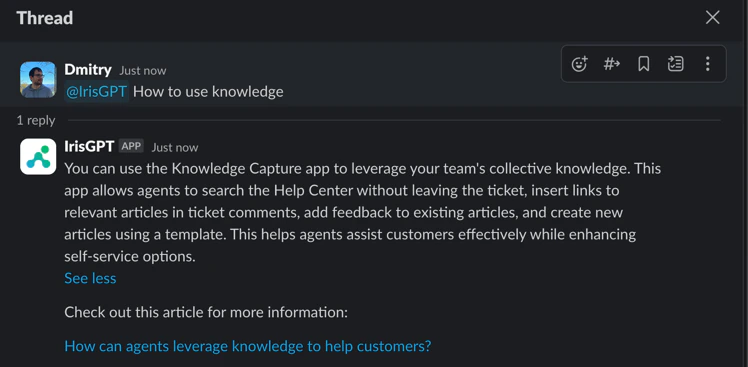
Mention the bot in any channel where it has been invited. The response is posted as a public thread reply, visible to everyone in the channel.
```
@IrisGPT how do I reset my password?
```
### **Mention: `@IrisGPT`**
Mention the bot in any channel where it has been invited. The response is posted as a public thread reply, visible to everyone in the channel.
```
@IrisGPT how do I reset my password?
```
 ### **App Home Tab**
Open the IrisGPT app in Slack to view the Home tab. It displays a welcome message with a link to the IrisAgent website for additional resources.
## **Proactive Notifications**
Beyond answering questions on demand, IrisGPT can proactively post updates to a Slack channel so your team sees important changes without checking the portal.
### **What Gets Posted**
* **New and trending issue categories:** when IrisAgent detects a newly emerging or spiking category of customer issues.
* **New AutoKB articles:** when IrisAgent automatically generates a new knowledge base article.
### **Enable Notifications**
Notifications are configured in IrisPortal, on the same Slack card you used to connect your workspace.
1. In IrisPortal, open your chatbot deployment settings and find the **Slack** card.
2. Turn on **Enable Slack notifications**.
3. Choose the **channel** where updates should be posted.
4. Select which updates to receive: **New & trending issue categories** and **New AutoKB articles**.
5. Save your changes.
The IrisGPT bot must be a member of the channel you select, otherwise posts cannot be delivered. If your channel is not listed or updates are not appearing, invite **@IrisGPT** to the channel and try again.
## **Need Help?**
If you have any questions or need further assistance, [don't hesitate to reach out](mailto:contact@irisagent.com).
### **App Home Tab**
Open the IrisGPT app in Slack to view the Home tab. It displays a welcome message with a link to the IrisAgent website for additional resources.
## **Proactive Notifications**
Beyond answering questions on demand, IrisGPT can proactively post updates to a Slack channel so your team sees important changes without checking the portal.
### **What Gets Posted**
* **New and trending issue categories:** when IrisAgent detects a newly emerging or spiking category of customer issues.
* **New AutoKB articles:** when IrisAgent automatically generates a new knowledge base article.
### **Enable Notifications**
Notifications are configured in IrisPortal, on the same Slack card you used to connect your workspace.
1. In IrisPortal, open your chatbot deployment settings and find the **Slack** card.
2. Turn on **Enable Slack notifications**.
3. Choose the **channel** where updates should be posted.
4. Select which updates to receive: **New & trending issue categories** and **New AutoKB articles**.
5. Save your changes.
The IrisGPT bot must be a member of the channel you select, otherwise posts cannot be delivered. If your channel is not listed or updates are not appearing, invite **@IrisGPT** to the channel and try again.
## **Need Help?**
If you have any questions or need further assistance, [don't hesitate to reach out](mailto:contact@irisagent.com).