> ## Documentation Index
> Fetch the complete documentation index at: https://docs.irisagent.com/llms.txt
> Use this file to discover all available pages before exploring further.
# Microsoft Teams Bot
> Deploy IrisAgent as a Microsoft Teams Bot
## **Introduction**
\
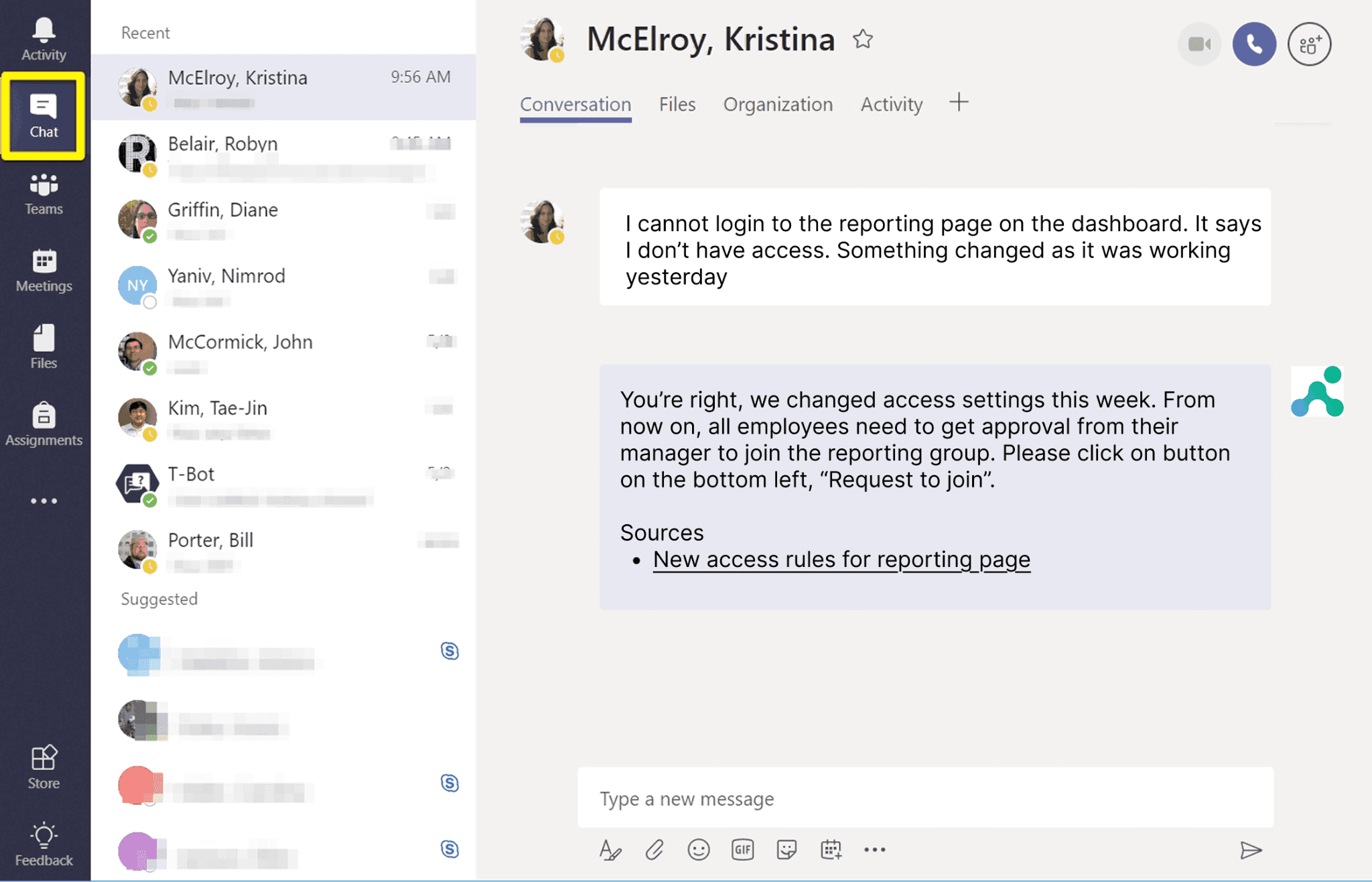
IrisGPT Chatbot for Microsoft Teams is an intelligent conversational assistant designed to make teamwork more efficient and productive. It helps users find information, summarize discussions, automate routine tasks, and generate quick insights—all without leaving Teams. With natural language understanding and enterprise-grade security, IrisGPT supports everyday collaboration, empowering teams to focus on ideas instead of administrative work.\
\
[Contact us now](https://irisagent.com/get-a-demo/) to schedule a demo and bring IrisGPT onboard your team. Elevate your collaboration. Embrace the future with IrisGPT for Teams.
 ## **Installing the IrisGPT app in Microsoft Teams**
### **Prerequisites for Installation**
* Access to Microsoft Teams Admin Center
* Admin permissions in Microsoft Teams
* The [`irisagent-chatbot.zip`](https://github.com/IrisAgent/docs/raw/main/assets/msteams/irisagent-chatbot.zip) file
### **Installation Steps**
#### **Step 1: Upload App to Microsoft Teams**
1. Navigate to the [Microsoft Teams Admin Center - Manage Apps](https://admin.teams.microsoft.com/policies/manage-apps).
2. Click on **Upload new app**
3. Select the [`irisagent-chatbot.zip`](https://github.com/IrisAgent/docs/raw/main/assets/msteams/irisagent-chatbot.zip) file provided by IrisAgent
4. Follow the prompts to complete the upload
#### **Step 2: Find Your Tenant ID**
Locate your Microsoft Teams Tenant ID:
* Option 1: Azure Portal > Azure Active Directory > Properties > Tenant ID
* Option 2: Extract from the Teams Admin Center URL
#### **Step 3: Provide Tenant ID to the IrisAgent Team**
Send your Tenant ID to the IrisAgent team for configuration.
## **Start Using IrisGPT in Microsoft Teams**
Once the app has been installed and configured, you can start using it in Microsoft Teams. Click on the Search for apps bar in Microsoft Teams. Type IrisAgent in the search box. The IrisAgent app will appear in the search results. Click on the IrisAgent app from the search results. You can now start a conversation with the IrisAgent chatbot.
## **Installing the IrisGPT app in Microsoft Teams**
### **Prerequisites for Installation**
* Access to Microsoft Teams Admin Center
* Admin permissions in Microsoft Teams
* The [`irisagent-chatbot.zip`](https://github.com/IrisAgent/docs/raw/main/assets/msteams/irisagent-chatbot.zip) file
### **Installation Steps**
#### **Step 1: Upload App to Microsoft Teams**
1. Navigate to the [Microsoft Teams Admin Center - Manage Apps](https://admin.teams.microsoft.com/policies/manage-apps).
2. Click on **Upload new app**
3. Select the [`irisagent-chatbot.zip`](https://github.com/IrisAgent/docs/raw/main/assets/msteams/irisagent-chatbot.zip) file provided by IrisAgent
4. Follow the prompts to complete the upload
#### **Step 2: Find Your Tenant ID**
Locate your Microsoft Teams Tenant ID:
* Option 1: Azure Portal > Azure Active Directory > Properties > Tenant ID
* Option 2: Extract from the Teams Admin Center URL
#### **Step 3: Provide Tenant ID to the IrisAgent Team**
Send your Tenant ID to the IrisAgent team for configuration.
## **Start Using IrisGPT in Microsoft Teams**
Once the app has been installed and configured, you can start using it in Microsoft Teams. Click on the Search for apps bar in Microsoft Teams. Type IrisAgent in the search box. The IrisAgent app will appear in the search results. Click on the IrisAgent app from the search results. You can now start a conversation with the IrisAgent chatbot.
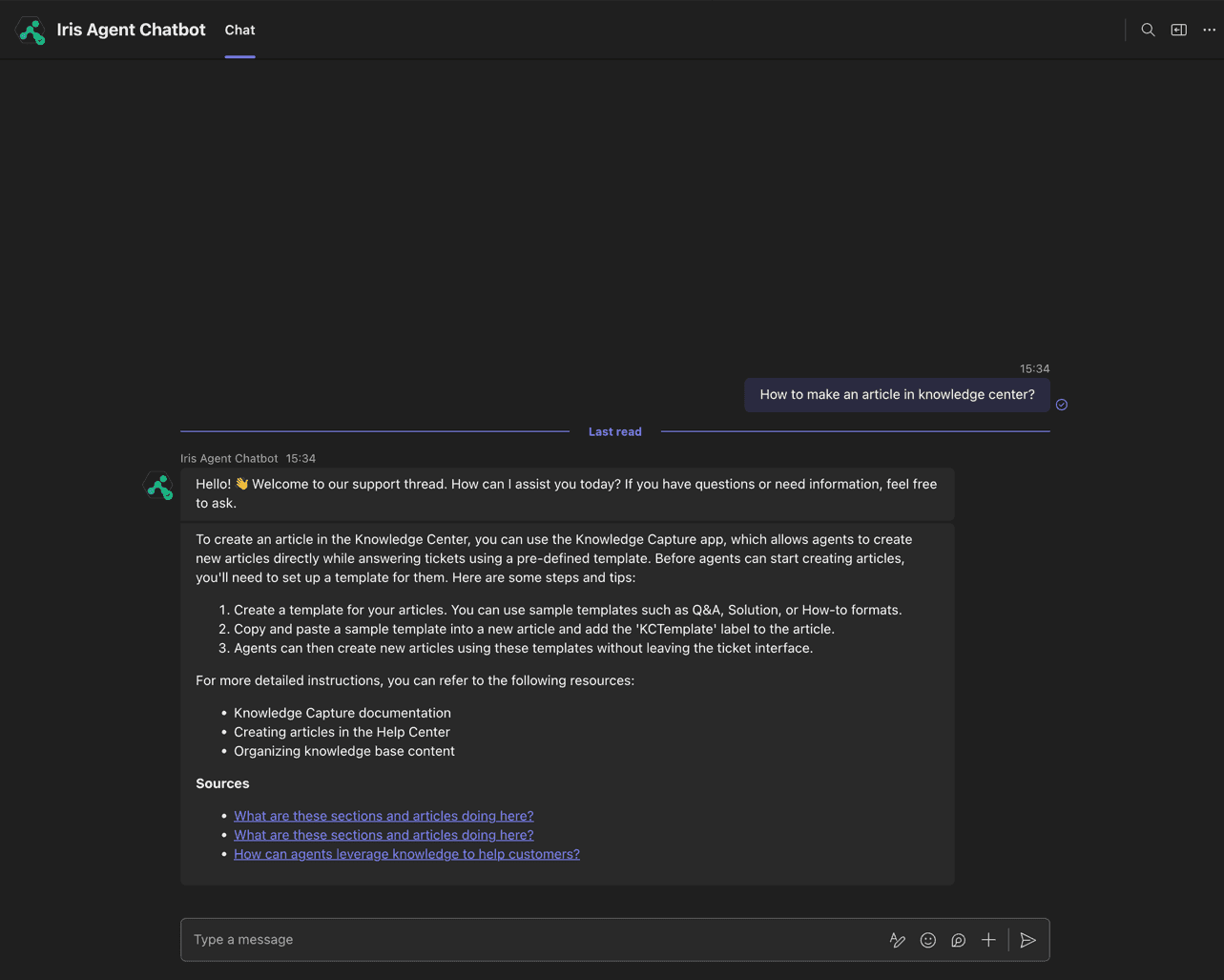 You can also invite the app to any channel and ask any questions from the IrisAgent app by mentioning it.