> ## Documentation Index
> Fetch the complete documentation index at: https://docs.irisagent.com/llms.txt
> Use this file to discover all available pages before exploring further.
# Chatbot Automation on Intercom
> Deploy IrisAgent AI answers to your Intercom Chatbot
## **Introduction**
\
IrisAgent AI can answer customer queries right within your Intercom chatbot seamlessly using webhooks. This guide will help you integrate IrisAgent with your Intercom chatbot.
## **Intercom App Configuration**
### **Step 1: Create a New Private App**
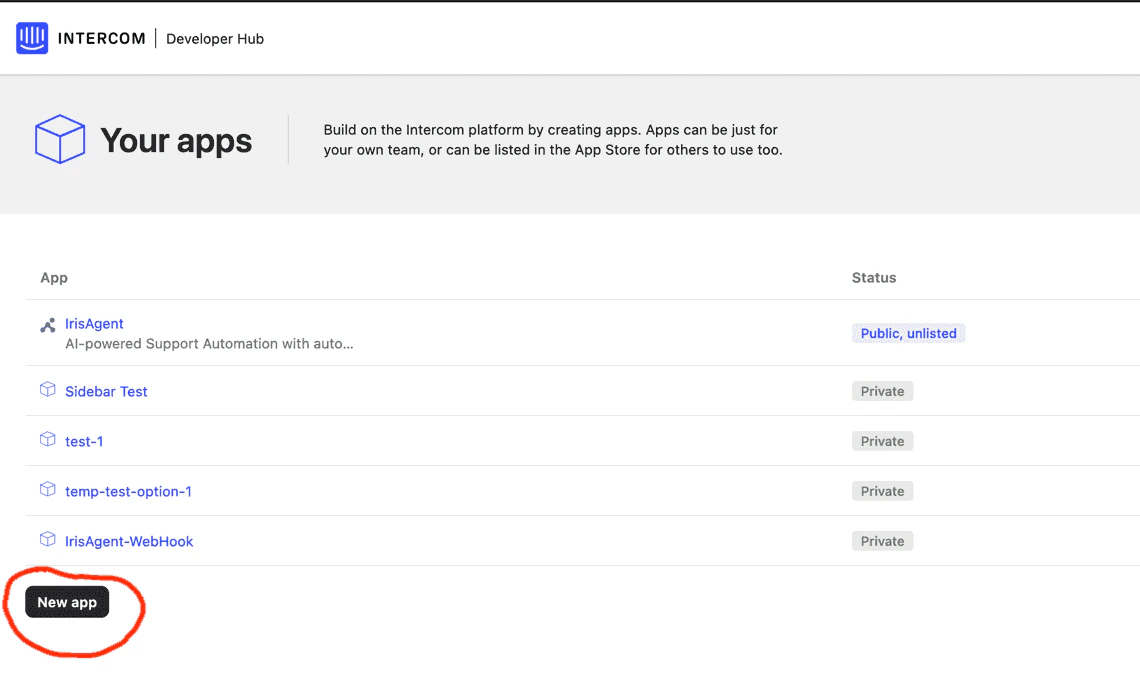
1. Navigate to the [Developer Hub](https://app.intercom.com/a/apps/_/developer-hub).
2. Select the option to create a new private app.
 Step 2: Set Permissions
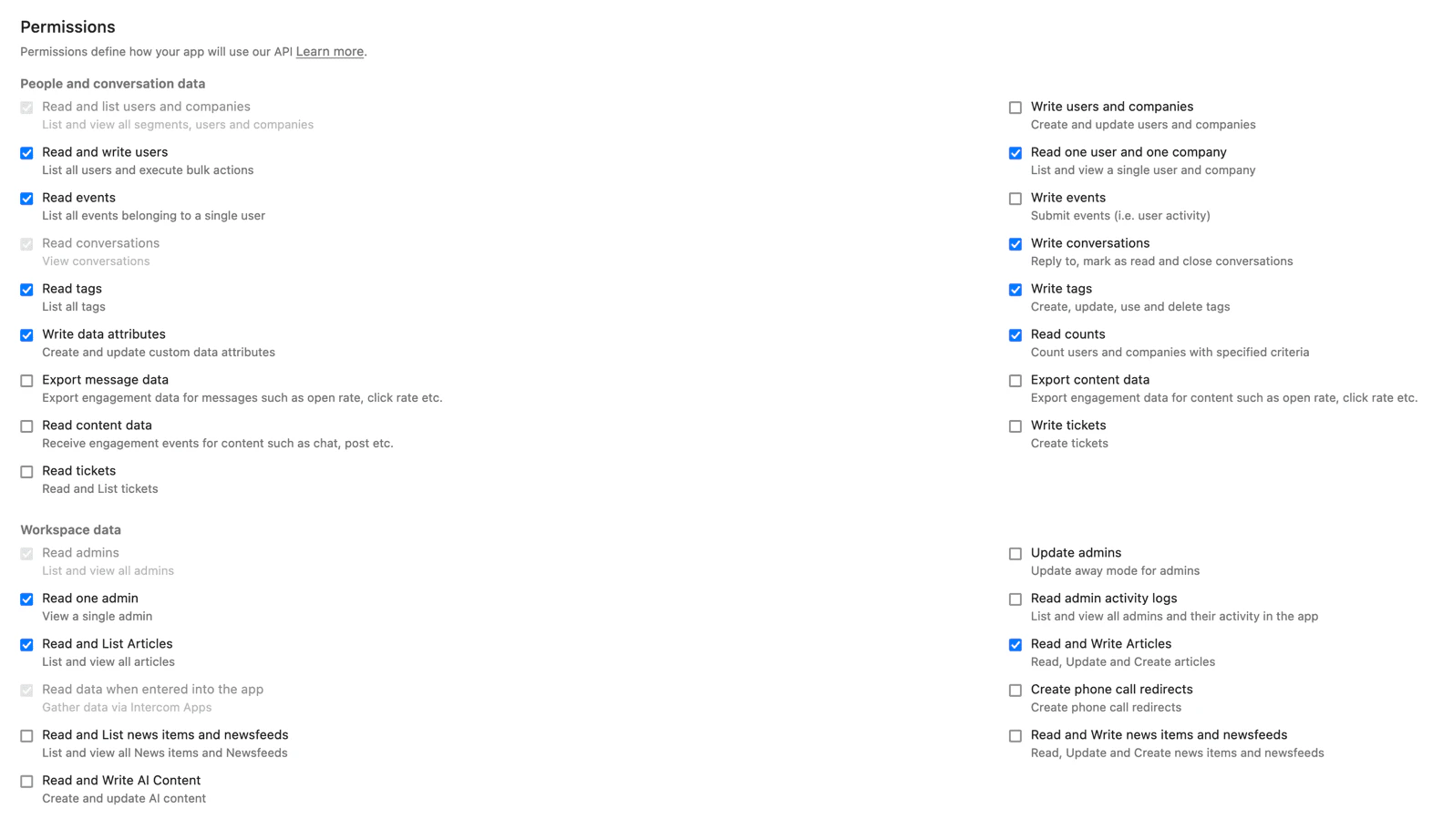
1. Access the Authentication menu in your app settings.
2. Configure the necessary permissions as shown below.
Step 2: Set Permissions
1. Access the Authentication menu in your app settings.
2. Configure the necessary permissions as shown below.
 ### **Step 3: Configure Webhooks**
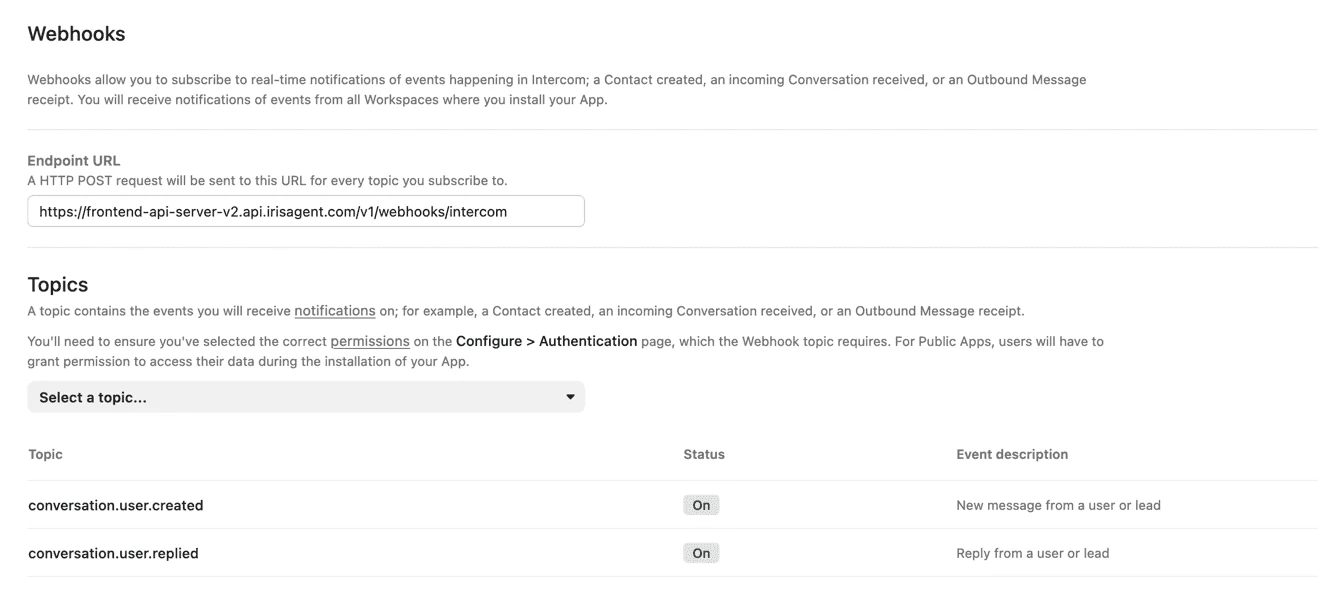
1. Go to the `Webhooks` menu in your app settings.
2. Ensure you set up the following required topics:
* `conversation.user.created`
* `conversation.user.replied`
3. Set the Endpoint URL to: `https://api1.irisagent.com/v1/webhooks/intercom/your_organization_id`. Note that `your_organization_id` can be found in the URL of the home page of your Intercom account as shown below:\
`https://app.intercom.com/a/apps/your_organization_id/home`
### **Step 3: Configure Webhooks**
1. Go to the `Webhooks` menu in your app settings.
2. Ensure you set up the following required topics:
* `conversation.user.created`
* `conversation.user.replied`
3. Set the Endpoint URL to: `https://api1.irisagent.com/v1/webhooks/intercom/your_organization_id`. Note that `your_organization_id` can be found in the URL of the home page of your Intercom account as shown below:\
`https://app.intercom.com/a/apps/your_organization_id/home`
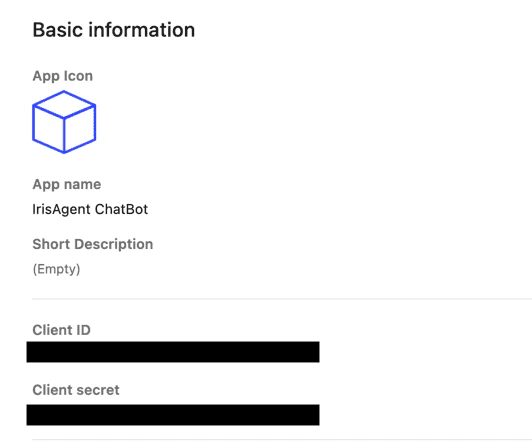
 ### **Step 4: Note Your ClientSecret and ClientID**
1. Find these credentials under the `Basic information` menu.
2. The ClientSecret is vital for validating webhook requests from Intercom.
### **Step 4: Note Your ClientSecret and ClientID**
1. Find these credentials under the `Basic information` menu.
2. The ClientSecret is vital for validating webhook requests from Intercom.
 ### **Step 5: Note the IrisAgent UserId**
\
Select an author who should be used by IrisAgent to send automated messages. Note this[User id](https://developers.intercom.com/docs/references/rest-api/api.intercom.io/Models/contact_reply_intercom_user_id_request/) that should be used as the author of IrisAgent AI comments. Your Intercom admin can get the user id for a given user from the Intercom dashboard by following the steps below:
1. Navigate to Settings -> Teammates.
2. Click on the name of the user whose id you want to get
3. The URL of the page would look like `https://app.intercom.com/a/apps/intercom_id/admins/user_id`. Share the `user_id` at the end of the URL.
### **Step 6: Configure IrisAgent Integration**
Configure the Intercom integration in your IrisAgent dashboard:
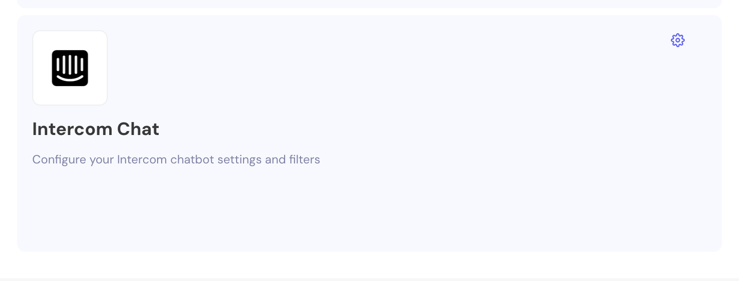
1. In the IrisAgent dashboard, open **Deploy** > **Chat** from the left sidebar, then find the **Intercom Chat** card and click the settings (gear) icon to open its configuration panel.
2. Enter the `ClientSecret` from Step 4.
3. Enter the `User ID` from Step 5 that IrisAgent will use as the author for automated responses.
### **Step 5: Note the IrisAgent UserId**
\
Select an author who should be used by IrisAgent to send automated messages. Note this[User id](https://developers.intercom.com/docs/references/rest-api/api.intercom.io/Models/contact_reply_intercom_user_id_request/) that should be used as the author of IrisAgent AI comments. Your Intercom admin can get the user id for a given user from the Intercom dashboard by following the steps below:
1. Navigate to Settings -> Teammates.
2. Click on the name of the user whose id you want to get
3. The URL of the page would look like `https://app.intercom.com/a/apps/intercom_id/admins/user_id`. Share the `user_id` at the end of the URL.
### **Step 6: Configure IrisAgent Integration**
Configure the Intercom integration in your IrisAgent dashboard:
1. In the IrisAgent dashboard, open **Deploy** > **Chat** from the left sidebar, then find the **Intercom Chat** card and click the settings (gear) icon to open its configuration panel.
2. Enter the `ClientSecret` from Step 4.
3. Enter the `User ID` from Step 5 that IrisAgent will use as the author for automated responses.