> ## Documentation Index
> Fetch the complete documentation index at: https://docs.irisagent.com/llms.txt
> Use this file to discover all available pages before exploring further.
# Intercom
> IrisAgent Installation Guide for Intercom
## Sign up on IrisAgent Dashboard
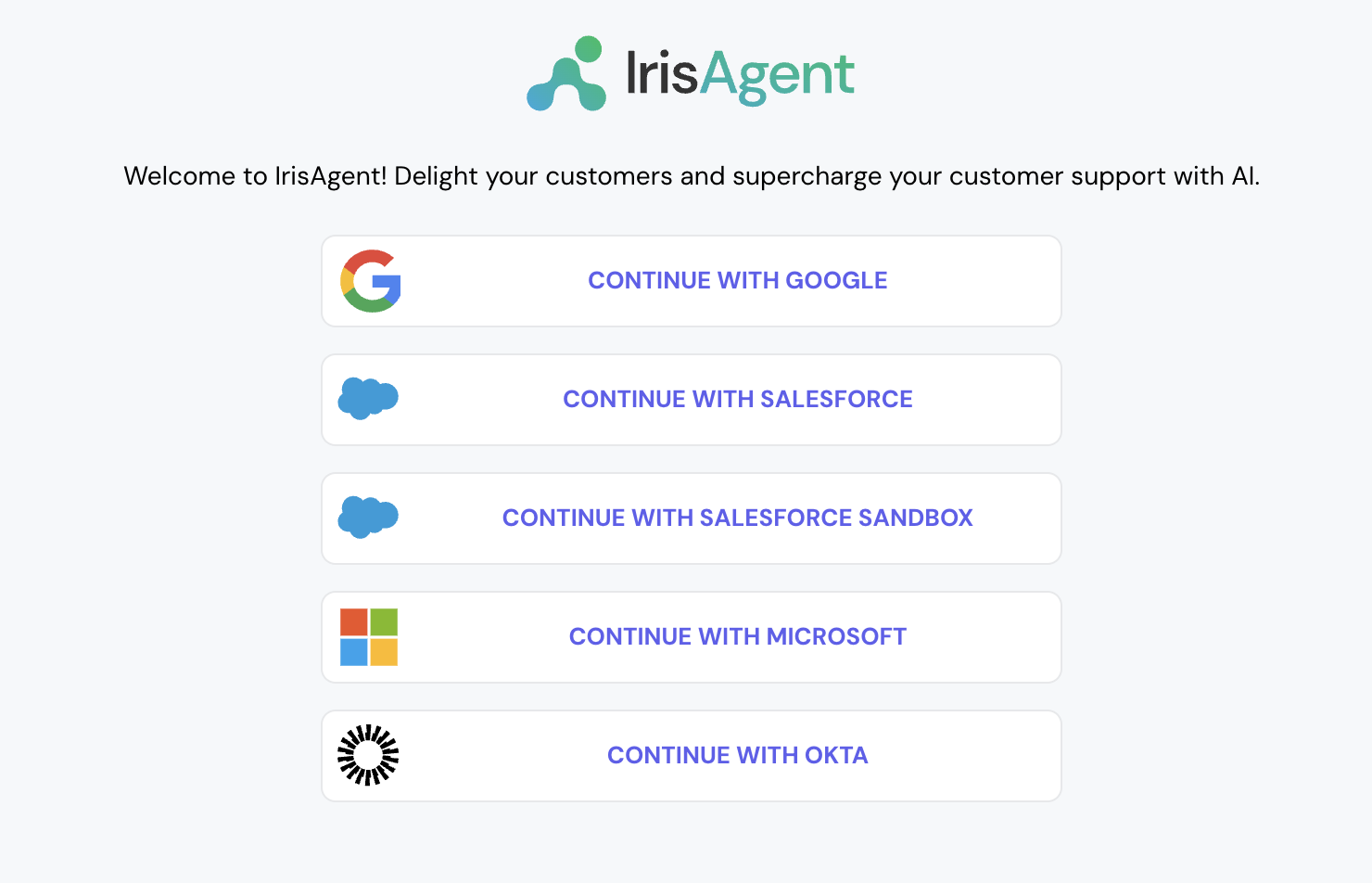
* Go to the [IrisAgent Dashboard](https://web.irisagent.com/) and sign in with either GSuite, Microsoft, or Okta SSO.
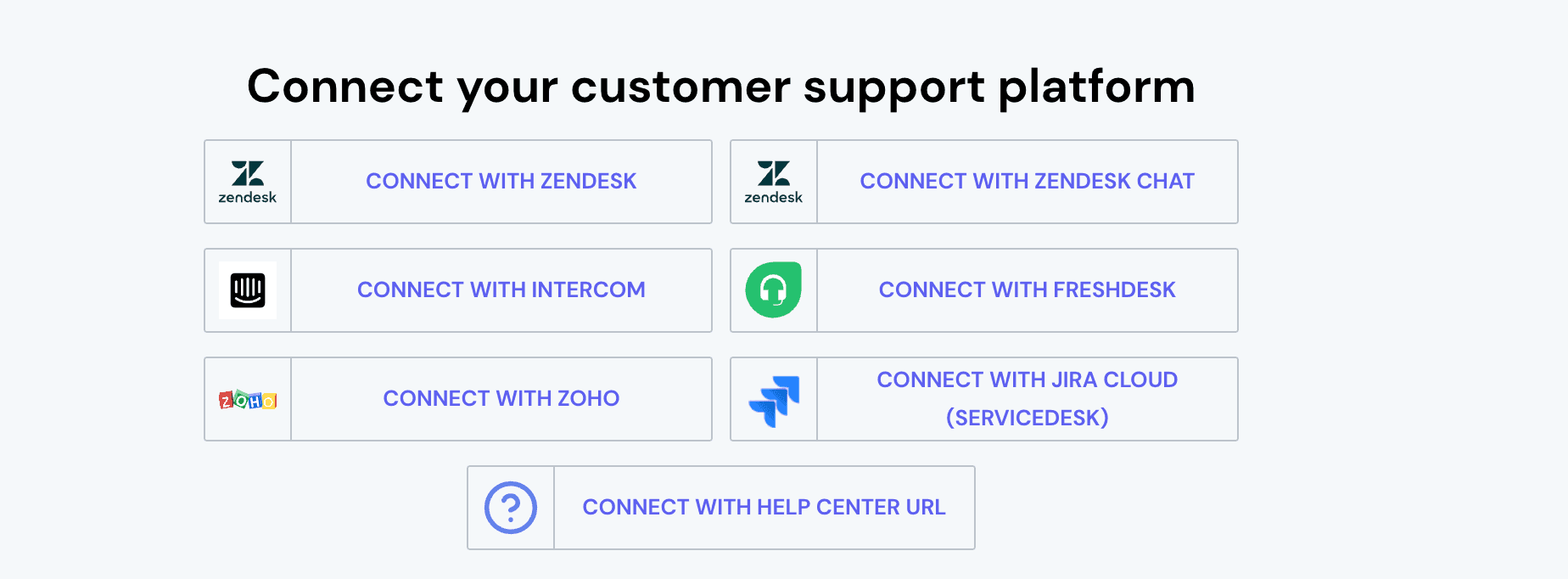
* Click on **Connect with Intercom**. Give the OAuth permissions and click on Allow. This will automatically connect with both Intercom tickets and articles.
* This step is optional. If you want to connect with more platforms, such as Jira, Confluence, Salesforce, etc., navigate to **Manage Integrations** on the bottom left and connect with the relevant platforms.
## Install the IrisAgent app into your Intercom account
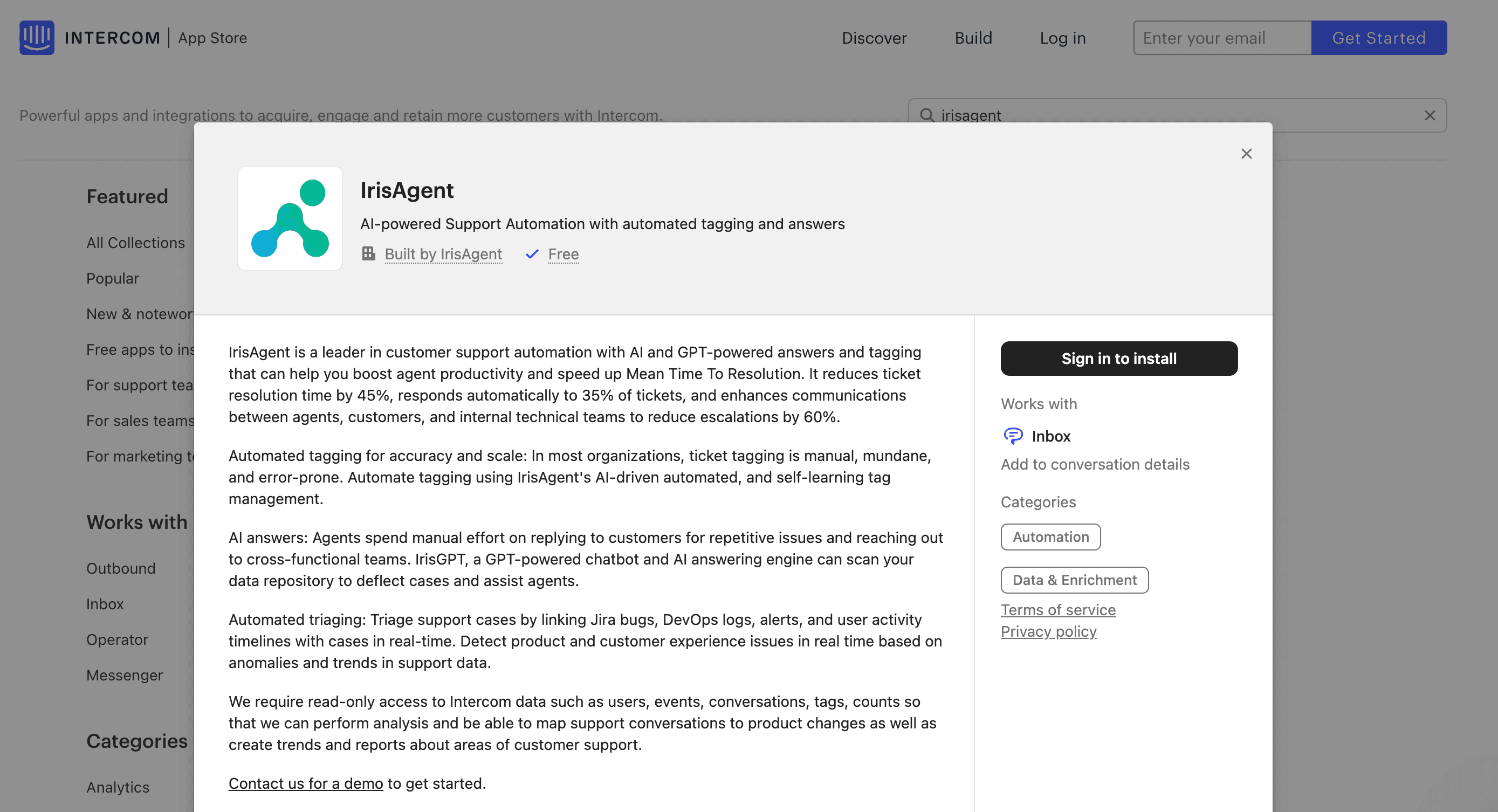
* Navigate to [IrisAgent's listing](https://www.intercom.com/apps/Intercom/irisagent/) on the Intercom Marketplace.
* Click on Install and follow the next steps.