> ## Documentation Index
> Fetch the complete documentation index at: https://docs.irisagent.com/llms.txt
> Use this file to discover all available pages before exploring further.
# Revise Chatbot Answers
> Learn how to update and refine AI answers provided by IrisGPT using the dashboard
## Revise Chatbot Answers
Train your chatbot to give better responses by revising AI answers directly from the IrisAgent dashboard. When the chatbot provides an answer that could be improved, you can update it in just a few clicks—no code required.
## Overview
The **Revise** feature allows you to:
* Review chatbot conversations in real-time
* Edit AI responses that need improvement
* Train the chatbot to provide your revised answer for similar future questions
* Maintain consistent, on-brand messaging across all customer interactions
Revised answers are applied immediately. The next time a customer asks a similar question, the chatbot will use your updated response.
## How It Works
When you revise an answer, you're creating a training rule that tells IrisGPT how to respond to specific types of questions. You can either provide a **Direct Answer** (the exact response you want) or give **Instructions for AI Agent** (guidelines for how the AI should formulate its response).
***
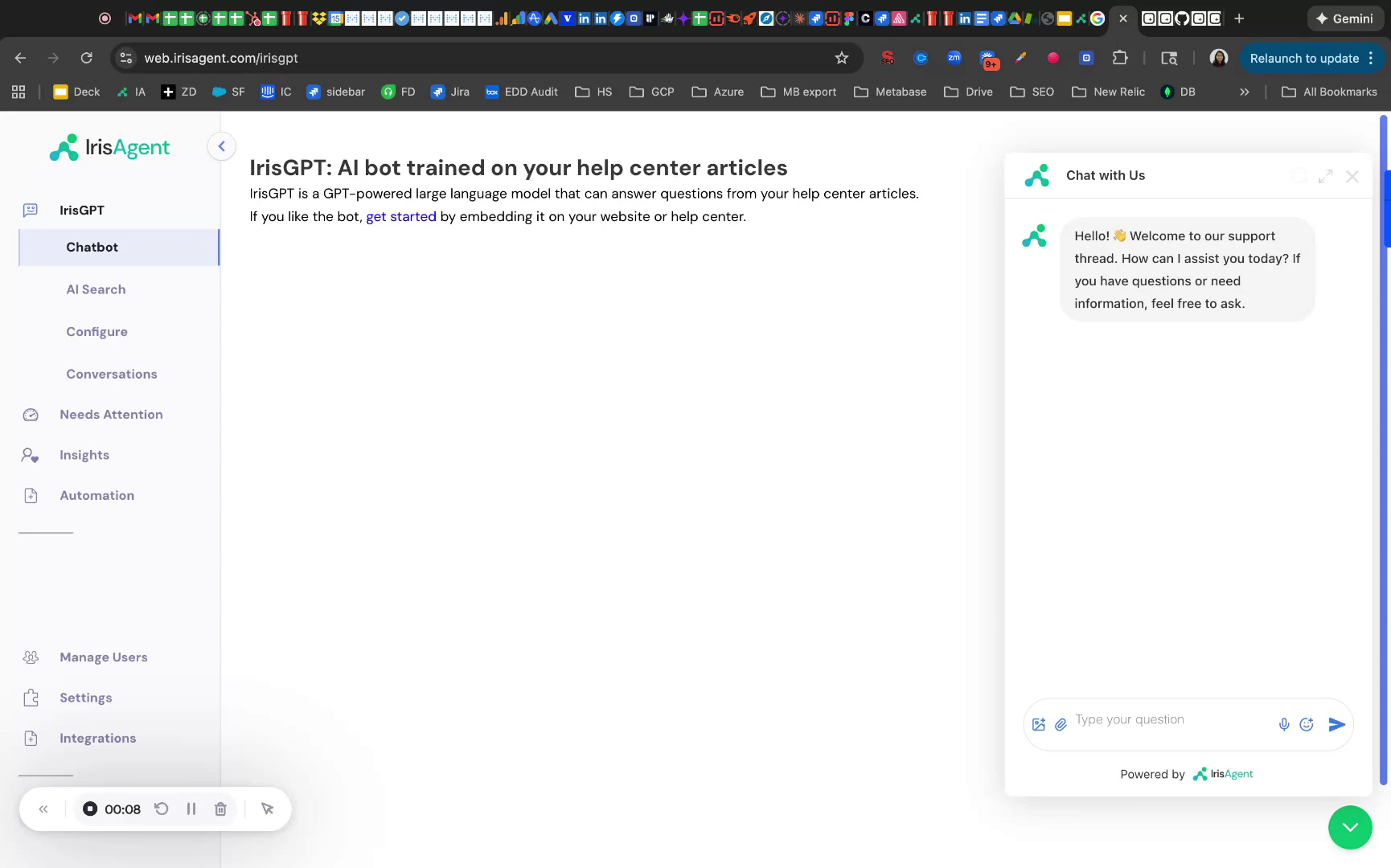
## Step 1: Ask a Question in the Chatbot
Start by identifying an AI response that needs improvement. You can do this by:
* Testing the chatbot yourself with sample questions
* Reviewing recent customer conversations
For example, type a question like "What is AutoKB?" into the IrisAgent chatbot and observe the response you receive.
 ***
## Step 2: Open the Conversations Tab
In the IrisAgent dashboard, navigate to **IrisGPT → Conversations** where recent chatbot interactions are listed.
***
## Step 2: Open the Conversations Tab
In the IrisAgent dashboard, navigate to **IrisGPT → Conversations** where recent chatbot interactions are listed.
 Locate the conversation containing the question you want to revise (e.g., "What is AutoKB?"). Click on the conversation to view the full exchange.
***
## Step 3: Open the Revise Answer View
Within the conversation detail view, you'll see the question and the AI's response. Look for the **Revise** button in the bottom-right corner of the AI answer.
Click **Revise** to open the answer editor.
***
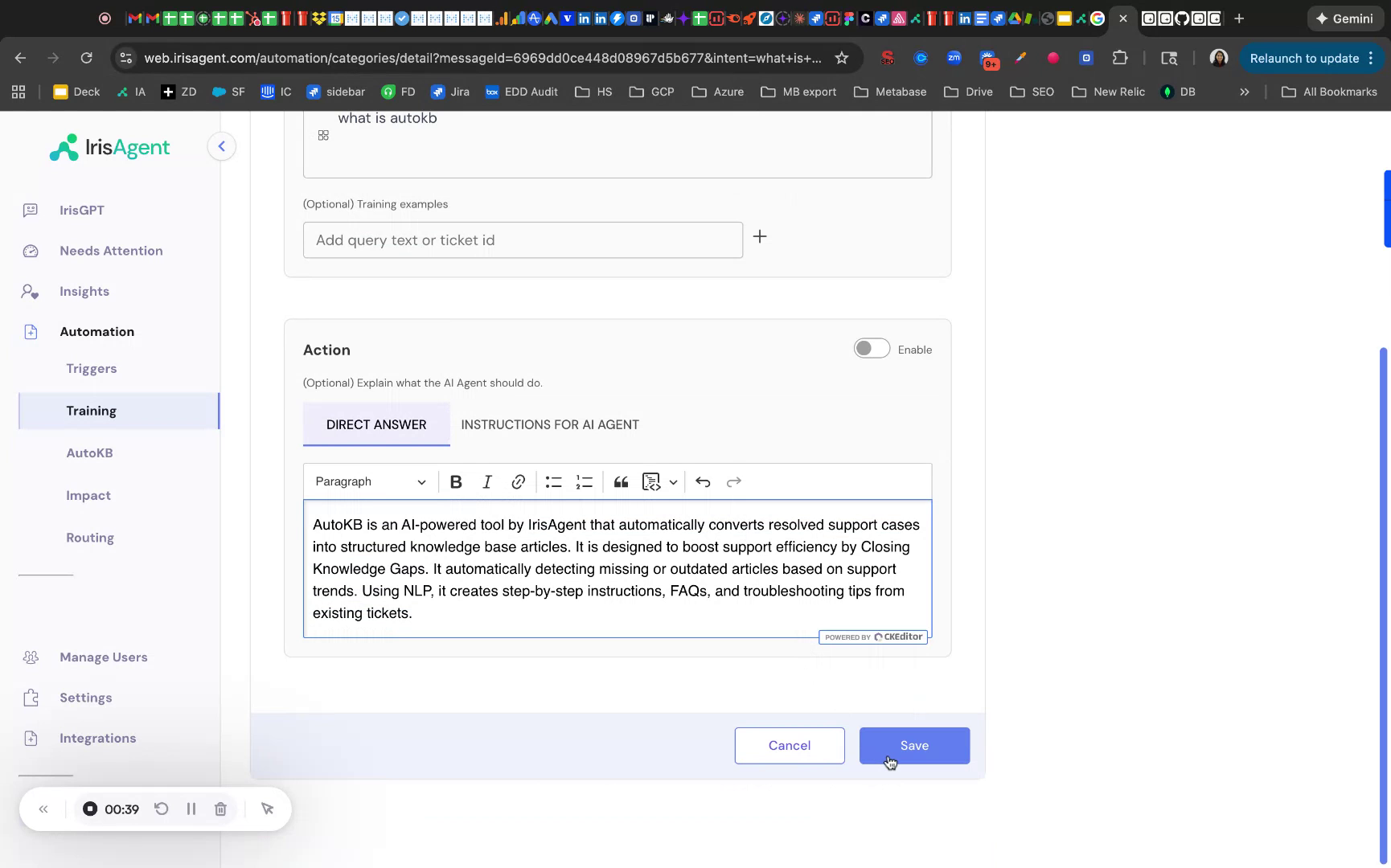
## Step 4: Edit and Save the New Answer
You'll now see the revision editor with two tabs:
Use this option to provide the exact response you want the chatbot to give. This is best for:
* Specific factual information
* Standard responses with precise wording
* Answers that should always be consistent
Simply type your improved answer in the text editor. You can use formatting options like **bold**, *italic*, links, and lists.
Use this option to give the AI guidelines on how to respond. This is best for:
* Answers that may need slight variations
* Responses that should incorporate real-time context
* Guidelines on tone, length, or structure
**Optional:** Add training examples by entering additional query text or ticket IDs. This helps the AI recognize variations of the same question.
When you're satisfied with your changes, click **Save** to apply the revision.
***
## Step 5: Test the Updated Answer in the Chatbot
Return to the chatbot interface and ask the same question again (e.g., "What is AutoKB?").
Confirm that the chatbot now responds with exactly the revised answer you configured.
**Success!** Your chatbot is now trained to provide the improved response for this type of question.
***
## Managing Revised Answers
All your revisions are saved as training rules. To view or edit existing revisions:
1. Navigate to **Automation → Training** in the sidebar
2. Browse your list of training rules
3. Click any rule to edit or delete it
Regularly review your training rules to ensure they stay up-to-date with your product and policies.
***
## Best Practices
Customers prefer clear, direct answers. Aim for responses that quickly address the question without unnecessary filler.
When appropriate, link to relevant help center articles so customers can learn more.
Ensure revised answers align with your company's tone and communication style.
If customers ask the same question in different ways, add those variations as training examples to improve matching.
***
## FAQ
Revisions are applied immediately after you click Save. The next matching question will receive your updated response.
Yes. Navigate to **Automation → Training**, find the rule, and either edit it or delete it to restore the AI's default behavior.
**Direct Answer** provides a word-for-word response. **Instructions for AI Agent** gives the AI guidelines to formulate its own response based on your criteria.
Yes, revisions apply to IrisGPT across all deployed channels (website chatbot, help center, etc.).
***
## Related Articles
Deploy IrisGPT on your website
Create automated workflows with AI
Use AI to enhance agent macros
Automatically resolve common tickets
Locate the conversation containing the question you want to revise (e.g., "What is AutoKB?"). Click on the conversation to view the full exchange.
***
## Step 3: Open the Revise Answer View
Within the conversation detail view, you'll see the question and the AI's response. Look for the **Revise** button in the bottom-right corner of the AI answer.
Click **Revise** to open the answer editor.
***
## Step 4: Edit and Save the New Answer
You'll now see the revision editor with two tabs:
Use this option to provide the exact response you want the chatbot to give. This is best for:
* Specific factual information
* Standard responses with precise wording
* Answers that should always be consistent
Simply type your improved answer in the text editor. You can use formatting options like **bold**, *italic*, links, and lists.
Use this option to give the AI guidelines on how to respond. This is best for:
* Answers that may need slight variations
* Responses that should incorporate real-time context
* Guidelines on tone, length, or structure
**Optional:** Add training examples by entering additional query text or ticket IDs. This helps the AI recognize variations of the same question.
When you're satisfied with your changes, click **Save** to apply the revision.
***
## Step 5: Test the Updated Answer in the Chatbot
Return to the chatbot interface and ask the same question again (e.g., "What is AutoKB?").
Confirm that the chatbot now responds with exactly the revised answer you configured.
**Success!** Your chatbot is now trained to provide the improved response for this type of question.
***
## Managing Revised Answers
All your revisions are saved as training rules. To view or edit existing revisions:
1. Navigate to **Automation → Training** in the sidebar
2. Browse your list of training rules
3. Click any rule to edit or delete it
Regularly review your training rules to ensure they stay up-to-date with your product and policies.
***
## Best Practices
Customers prefer clear, direct answers. Aim for responses that quickly address the question without unnecessary filler.
When appropriate, link to relevant help center articles so customers can learn more.
Ensure revised answers align with your company's tone and communication style.
If customers ask the same question in different ways, add those variations as training examples to improve matching.
***
## FAQ
Revisions are applied immediately after you click Save. The next matching question will receive your updated response.
Yes. Navigate to **Automation → Training**, find the rule, and either edit it or delete it to restore the AI's default behavior.
**Direct Answer** provides a word-for-word response. **Instructions for AI Agent** gives the AI guidelines to formulate its own response based on your criteria.
Yes, revisions apply to IrisGPT across all deployed channels (website chatbot, help center, etc.).
***
## Related Articles
Deploy IrisGPT on your website
Create automated workflows with AI
Use AI to enhance agent macros
Automatically resolve common tickets